Always On Edge Lighting & AOD
DubiazPersonalization
3.53.31K Reviews
- Version
- 9.6.8
- Installs
- 10.00M
- Age Rating
- Everyone
Screenshots
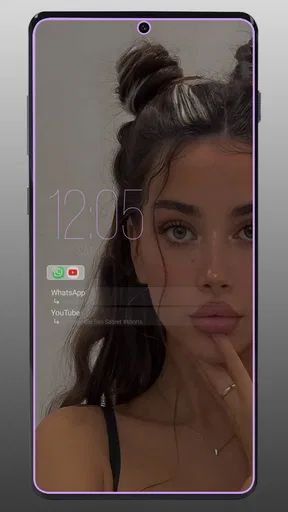
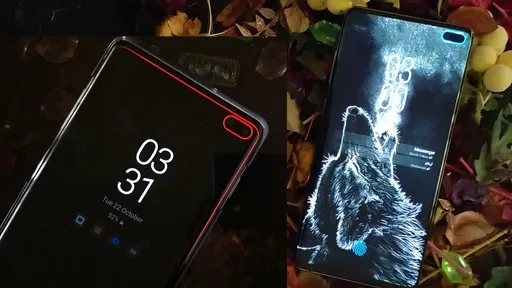
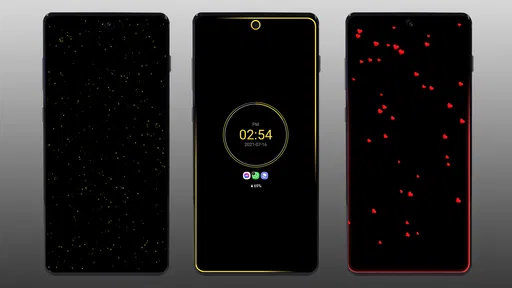
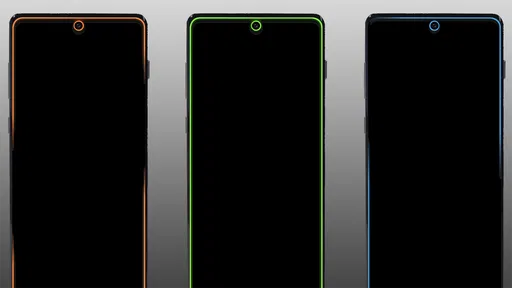
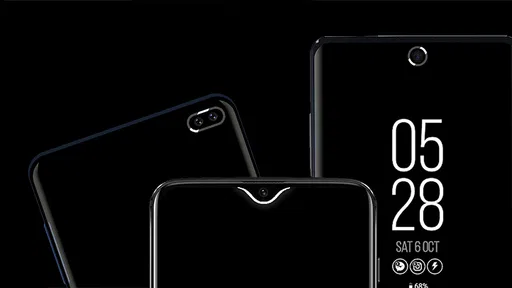
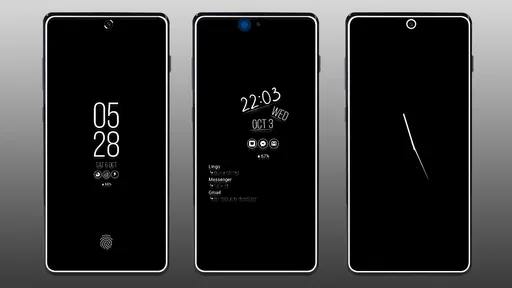
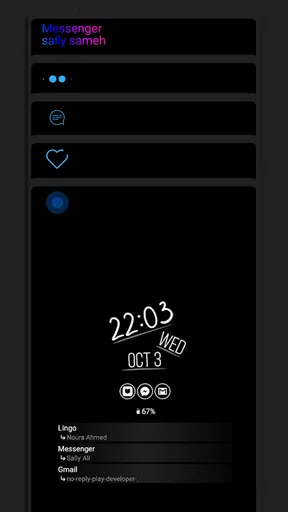
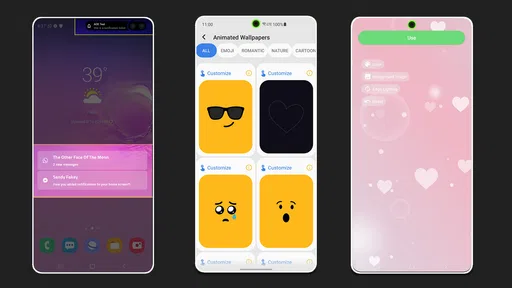
Our Review of Always On Edge Lighting & AOD
 Analysis by Appyee
I like personalization apps that change how a phone feels without forcing me to replace its entire interface. Always On Edge Lighting & AOD, from Dubiaz, takes that approach by combining an always-on display with edge lighting and border effects. It is a free personalization app for Android, rated for Everyone, and it has become a widely used option with over 10 million installs. My overall impression is mixed but positive: it can make a compatible phone feel more expressive and easier to notice at a glance, yet it demands patience during setup and careful attention to the choices it presents.
The app’s store summary focuses on a professional always-on display with LED and border-light effects. In daily use, that idea makes sense for people who want notifications or a clock to feel more visible when the screen is idle. I would not treat it as a replacement for the phone’s built-in ambient display in every situation, though. Its value depends on how much customization you want, how your device handles overlays, and whether the extra visual activity is worth the possible effect on convenience and battery habits.
How Always On Edge Lighting & AOD fits into real phone use
I use Always On Edge Lighting & AOD most successfully when I treat its effects as a cue to check my phone, not as a replacement for checking it. In this section, I’ll look at how a small, repeatable setup can fit around work, quiet hours, and everyday notification habits, then turn to the settings that make that routine easier to manage.
A personalization tool rather than a complete lock-screen replacement
The most useful way to think about Always On Edge Lighting & AOD is as an additional visual layer. Instead of changing the whole launcher or installing a heavy theme, I can use it to give the idle screen a stronger identity. The appeal is especially clear on phones with curved-looking displays, narrow bezels, or bright panels where an edge animation can be seen from across a desk.
That makes it suitable for a few everyday situations. If my phone is on a stand while I work, a subtle clock or edge effect can tell me whether something deserves attention without requiring me to pick the device up. At night, a restrained display can be easier to read than repeatedly waking the phone. During a meeting, a visual notification cue may be less disruptive than sound, provided the chosen effect is not overly bright or animated.
The trade-off is that the app adds another system layer to manage. A built-in always-on display is usually designed around the phone’s hardware and power behavior. A third-party personalization app has to work across a much wider range of devices, screen types, Android versions, and manufacturer restrictions. That difference explains why the experience may feel polished on one phone and less seamless on another.
What the developer and public reception suggest
Dubiaz has kept the app active as a recognizable personalization product rather than a one-purpose novelty. The current version is 9.6.8, and the app was released on June 20, 2018. Its average rating is 3.5 from around 196 thousand ratings, with roughly 3.3 thousand written reviews. I read those figures as a sign of broad interest but uneven satisfaction: many people clearly find the concept useful, while compatibility and day-to-day friction likely matter a great deal.
The app is free to install, with optional purchases ranging from $0.99 to $4.49 per item. That makes it easy to test before spending anything, which is important here because the right experience depends so much on a particular phone. I would use the free version first, leave it active through a normal workday and evening, and only then decide whether any paid extras justify the cost.
Its Everyone content rating also makes it approachable for a broad audience. That does not mean every setting is equally appropriate for every person. Someone sensitive to bright animations may prefer a quiet clock and minimal border movement, while someone looking for a dramatic gaming-style effect may enjoy more visible customization.
Trust starts with what I can actually see
With an app that may interact closely with the screen and notifications, I pay attention to the setup flow rather than relying on a reassuring description. I look at each permission or system-access request when it appears, check why the app says it needs that access, and avoid enabling anything that does not match the way I intend to use the display. This is not a claim about hidden data practices; it is simply the safest way to evaluate a personalization tool on my own device.
I also prefer testing it without immediately connecting any account or adding unnecessary personal details. If an app can be used locally for its main visual purpose, keeping the initial trial simple gives me a clearer view of what is essential. In this case, the important trust question is not whether the effects look attractive, but whether I remain comfortable with every visible access request and system setting involved.
Controls that matter during setup
The first practical step is choosing a display style that fits the phone rather than starting with the most elaborate animation. I would begin with a clock, a restrained border effect, and a short test period. This reveals whether the text is readable, whether the edges are clipped, and whether the display appears when the phone is actually idle. It also prevents a common mistake: spending time designing an effect that becomes annoying after a few hours.
Notification-related choices deserve extra care. If the app offers a way to show alerts around the edge, I would select only the categories that matter to me. A work messaging app may be useful; every shopping, social, and promotional alert is not. Narrowing the sources makes the lighting more meaningful and reduces the chance that the screen becomes a constant stream of color.
I would also review the phone’s own battery and background-activity controls after enabling the app. Android manufacturers sometimes manage background apps aggressively, which can interrupt visual behavior. On the other hand, loosening every battery restriction just to keep an animation running may be a poor exchange. The sensible approach is to test the default behavior first, then make the smallest adjustment needed.
Three useful habits that are easy to overlook
First, design for distance rather than screenshots. A border effect can look impressive while configuring it but become distracting when seen from the corner of a room. I find it more useful to place the phone where I normally leave it and watch the effect during ordinary tasks. If I cannot identify whether the alert matters from a quick glance, the design is decorative rather than practical.
Second, separate daytime and nighttime expectations. A bright edge animation that works in an office may be uncomfortable beside a bed. I would use the quietest available arrangement overnight and check whether the phone’s own bedtime, do-not-disturb, or display behavior conflicts with the app. The goal is not maximum visibility at all times; it is the right amount of visibility for each setting.
Third, treat notification lighting as a filter, not a mirror. Showing every alert defeats the purpose of glanceable information. I would start with calls, direct messages, and calendar-related items, then add another category only if it proves useful. This workflow gives the border effect a clear meaning and makes it easier to notice genuinely important events.
Where data-sensitive moments appear
The most sensitive part of this kind of app is not the color selection. It is the point where the app may need access connected to notifications, screen display, or other Android system behavior. Because those controls can vary by device and software version, I would read the wording on my own phone carefully instead of assuming that every installation behaves identically.
I would avoid granting broad access simply because a setup screen recommends it. If a feature does not work without a particular permission, I would decide whether that feature is important enough to justify the access. For a simple clock or decorative edge, the answer may be no. For notification-based lighting, the answer depends on how much value I get from seeing those alerts without opening the phone.
There is also a privacy consideration in the physical environment. A glowing edge can reveal that a message arrived when the phone is on a desk shared with colleagues or family. Even without showing message text, the timing and color may communicate more than I want. I would therefore disable sensitive notification categories or use a neutral effect in situations where discretion matters.
Keeping control after installation
User agency should not end once the app has been configured. I would periodically revisit Android’s app permissions, notification access, battery settings, and display-related controls, especially after a major phone update. If I stop using the app, I would turn off its active settings and remove any access I no longer need rather than assuming uninstalling is the only step worth taking.
I also recommend creating a simple personal rule: if the effect becomes annoying, reduce it before removing the app. Lowering brightness, narrowing notification categories, choosing a still design, or limiting use to specific hours can preserve the useful part without letting the feature dominate the phone. If those adjustments do not solve the irritation, disabling it is the correct decision.
The app’s free entry point helps with this experimentation. I would not buy an item during the first few minutes of setup, because the real test is whether the feature remains comfortable after repeated use. A paid customization is worthwhile only if it solves a problem I actually have, such as improving glanceability or fitting the display to my routine, rather than merely adding another visual option.
How it compares with built-in alternatives
Compared with a phone’s built-in always-on display, this app is more appealing when I want stronger visual personality and edge-focused effects. The built-in option usually wins for simplicity: it is already integrated, tends to require fewer decisions, and may be more predictable with power management. If all I want is a clock and basic notification awareness, I would try the system feature first.
Compared with a full launcher or icon-pack setup, Always On Edge Lighting & AOD is narrower and less disruptive. I do not have to redesign the home screen to change the idle experience. That makes it a better fit for someone who likes the phone’s current layout but wants the locked or inactive state to feel less plain.
Compared with static wallpaper personalization, the app offers more practical visibility because the display can communicate time or alert activity. Static customization is still better for people who want zero background activity and no extra system access. In other words, this app sits between decoration and utility: it looks expressive, but its best use is helping me decide whether to interact with the phone.
Who will enjoy it, and who should skip it
I would recommend trying it if you enjoy tuning small visual details, keep your phone visible on a desk, or often miss silent notifications because the device is face down or across the room. It is also a reasonable option for someone whose phone’s standard idle display feels too limited and who wants edge lighting without changing the entire interface.
I would be more cautious if battery efficiency is your highest priority, if you dislike animated screen effects, or if you want a completely maintenance-free experience. People who need strict control over notification visibility should also test it carefully, because a visible edge cue can still expose the arrival of a private message. And if the built-in display already provides everything needed, adding another layer may not be worth the setup effort.
Device compatibility is the other practical dividing line. Android 8.1 or newer is required, but meeting that requirement does not guarantee identical behavior across manufacturers. Before relying on it for important alerts, I would test the phone while locked, charging, on silent, and in the places where I normally leave it. That small check is more useful than judging the app from its preview images.
My cautious verdict after living with the idea
Always On Edge Lighting & AOD is a worthwhile free experiment for people who want their phone’s idle screen to do more than show a basic clock. Its strongest quality is flexibility: the edge-lighting concept can be decorative, informative, or both, depending on how selectively it is configured. The app also avoids forcing a complete launcher makeover, which keeps the commitment relatively small.
My reservation is that the experience requires active management. The best result comes from choosing restrained effects, filtering alerts, checking system access, and watching how the phone behaves over time. Users who expect a perfectly integrated feature with no adjustment may prefer the built-in alternative. Users who enjoy personalization and are willing to make those choices will get more from it.
For me, the deciding test is simple: after a full day, does the display help me notice useful information without making me stare at the phone more often? If the answer is yes, the app earns its place. If it becomes visual noise or asks for more control than I am comfortable granting, I would turn it off and keep the phone’s native display. That balance makes this a capable personalization app, but not an automatic recommendation for everyone.
Verdict
Strengths of Always On Edge Lighting & AOD
- Highly customizable edge-lighting colors, styles, and animation effects.
- Supports notifications from selected apps and contacts.
- Offers useful always-on display clock and notification options.
- Can light the screen edges without requiring a notification LED.
- Includes scheduling controls to reduce lighting during sleep or work hours.
Limitations of Always On Edge Lighting & AOD
- Some advanced customization features may require in-app purchases.
- Continuous lighting effects can noticeably increase battery consumption.
- The app may need extensive permissions to detect and display notifications.
- Compatibility can vary across devices, Android versions, and screen types.
- Ads and background services may affect the overall user experience.
Similar Picks in This Category
View All
Microsoft SwiftKey AI Keyboard
SwiftKey4.3

Wallpapers
Google LLC4.1

Zedge™ Wallpapers & Ringtones
Zedge4.7

Yandex Browser with Alice AI
Direct Cursus Computer Systems Trading LLC4.3

Ringtone Maker:create ringtone
Big Bang Inc.4.7

Fonts Keyboard
Fonts Keyboard3.9
Frequently Asked Questions
What is Always On Edge Lighting & AOD used for?
Always On Edge Lighting & AOD is designed to make notifications more visible and attractive by displaying colorful lighting effects around the edges of your screen. It can also provide an always-on display with useful information such as the time, date, battery level, and notification icons. The app is especially helpful for users who want quick visual alerts without unlocking their phone.
Does Always On Edge Lighting & AOD work on every Android phone?
The app supports many Android smartphones, but the available features can vary depending on your device model, Android version, screen technology, and manufacturer settings. Some phones may require permission changes or battery optimization adjustments for the lighting and always-on display to work correctly. Before downloading, check the app’s compatibility details and be prepared to test its settings on your specific device.
Will the app drain my battery or cause screen burn-in?
Because Always On Edge Lighting & AOD may keep parts of the display active and monitor incoming notifications, it can use additional battery compared with leaving the screen completely off. The impact depends on your settings, brightness, animation duration, and display type. On OLED screens, prolonged static elements may also contribute to burn-in, so using movement options, dim brightness, and scheduled display times is recommended.
What permissions does Always On Edge Lighting & AOD require?
To provide its main functions, the app may request access to notifications, display overlays, accessibility services, and permission to run in the background. These permissions allow it to detect alerts, show edge effects over other apps, and keep the AOD feature active. Review each request carefully and enable only what you are comfortable with, since some permissions can provide access to sensitive notification content.
Can I customize the edge lighting and always-on display?
Yes, customization is one of the app’s main advantages. Depending on your device and the version installed, you can usually select different lighting styles, colors, animation speeds, screen positions, notification triggers, clock designs, and display schedules. You may also be able to create separate effects for individual contacts or applications. Some advanced themes and options could require in-app purchases or additional permissions.
